How to access Accessibility Settings:
Setup > General Settings > Accessibility
Setting to replace Hold to Confirm with regular press buttons
Setting better supports keyboard interactions for Users unable to use a mouse.
PLEASE NOTE:
We do not recommend making changes to this setting unless necessary in order to prevent accidental actions. The setting is defaulted to Yes.
How to access:
Setup > General Settings > Hold to Confirm Enabled

Popup Notification Display
Setting to give users more control over how pop up notifications behave.
How to access:
Setup > General Settings > Accessibility
Details:
- This setting allows users to set the amount of time in seconds that non-error pop ups appear on the screen before automatically disappearing. Set to 0 to disable automatic dismissal.

Notes:
Error notifications do not automatically disappear and must be dismissed manually.
Focus on Search Bar in Dashboard
Setting gives Users control over page load on Dashboard.
How to access:
Setup > General Settings > Accessibility > Autofocus on Search Bar in Dashboard

Details:
When set to "No" autofocus shifts to the top of the DOM. This can be beneficial for users using screen readers to get the full context of the page.
When set to "Yes" autofocus shifts to the Client search bar on Dashboard.

Enable Inventory Item Row Click to Edit
Setting gives Users control over page load on New Visit screen in Dashboard.
How to access:
Setup > General Settings > Accessibility > Enable Inventory Row Click to Edit

Details:
When set to "Yes", Users are able to edit Inventory Items on all interfaces with the inventory distributor by clicking the entire row, rather than using the Pencil Icon.
Shop Tile Accessibility
Setting gives Users control over Inventory Tiles in Storefront and ShopView.
How to access:
Setup > General Settings > Accessibility > Shop Tile Accessibility Mode

Details:
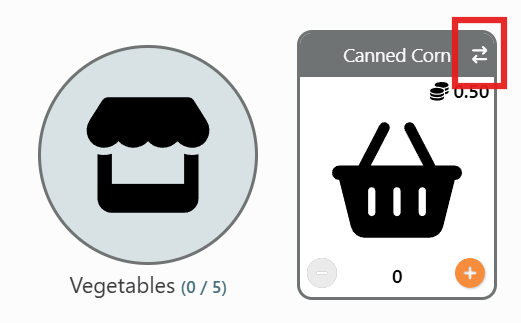
When set to "Yes", setting enhances screen reader accessibility for Inventory Tiles in Storefront and SHopView by adding flip tile specific buttons and removing animations.
Focus at the top of Visits
Setting gives Users control over page load on New Visit screen in Dashboard.
How to access:
Setup > General Settings > Accessibility > Always Focus at Top of Visits and Receives on Load

Details:
When set to "No" autofocus shifts to Inventory when logging a new Visit on Dashboard.
When set to "Yes" autofocus shifts to the top of the Visit page when logging a new Visit on Dashboard.
Glossary
- Toast - Toasts are short, pop up notifications that provide quick feedback to Users.
- Tippy - Tippies are the information that pops up when selecting the "i" icon next to settings.

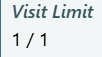
- / - used to show division of Items to Item Limits on Visits with Inventory Items.
- Inventory Distributor - Any place in PantrySoft where Inventory can be added. Examples include Visits, Visit Templates, Inventory Management and Lockers.
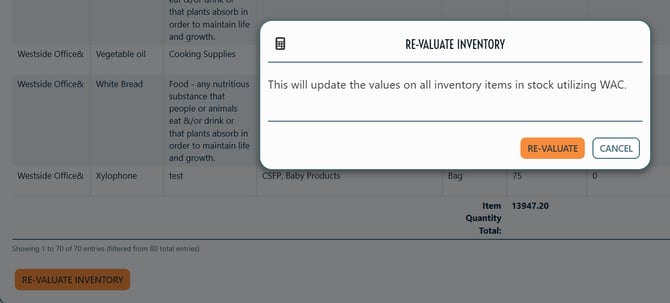
- Re-Valuate - Updates values on all Inventory Items. Visible to Org Admins with the setting Inventory Valuation Method set to WAC or Last Receive.