
Definition
Documents uploaded in PantrySoft, either by an Org user, Kiosk Staff User, or Client (via the client portal), will be located inside the client record as long as this setting under general settings is set to Yes:
Setup -> General Settings:

Client Record:
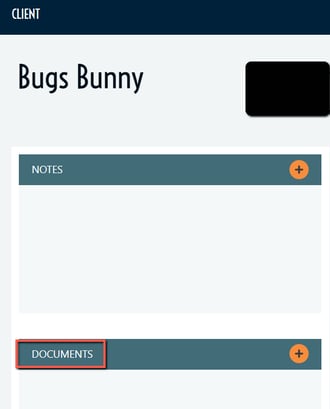
Uploading Documents:
An Org user can upload a new document by clicking on the the orange circle with the plus sign inside in the Documents section of the client record (image above).
- If you are uploading a document from a computer you will need to make sure that you have the file available to upload.
- If you are uploading a document from a mobile device, you will have the following options:
A Kiosk Staff User will be able to upload a document on a registration form on behalf of a client:

- The same rules above apply depending on if the Kiosk Staff user is logged in on a computer or mobile devise.
A client logged in through the client portal will have the same view as a Kiosk Staff user.
Additional Document Upload Settings:
Navigate to Setup -> Registration Setting and look for these settings:
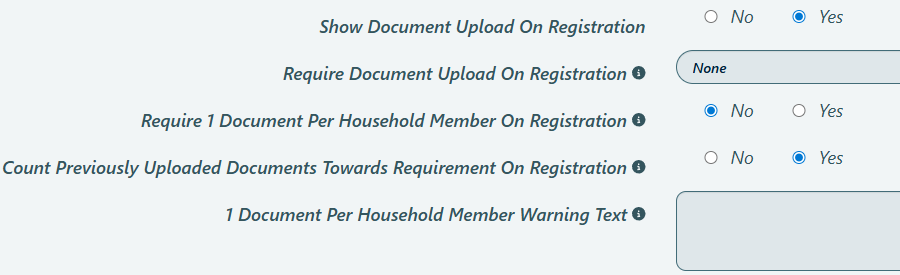
- Show Document Upload on Registration: When set to Yes, the Document Upload icon (image above) will display on Kiosk and Client Portal Registration
- Require Document Upload On Registration: The options for this setting are; None, Warn, and Enforce
- Require 1 Document Per Household Member On Registration: For example, if there were three members of a household there would need to be at least three documents upload in order to submit the registration form, when this setting is set to Yes
- Count Previously Uploaded Documents Towards Requirement On Registration: If the setting, Require Document Upload On Registration is set to yes, and the client already has a document uploaded on their client record they will not need to be required to submit another document with this setting set to Yes
- 1 Document Per Household Member Warning Text: This will allow you to add a customized warning message to clarify this requirement.
**NOTE: For more detailed information of the setting above, click on the info tippy to the right the setting(s).