---
title: Kiosk Interface
description: This article will cover how intake staff can use the PantrySoft Kiosk to efficiently log client visits.
---
[Skip to content](https://support.pantrysoft.com/express-kiosk-interface-staff-kiosk#main-content)
English
Show submenu for translations
[More support](https://support.pantrysoft.com/kb-tickets/new?hsLang=en)

Open main navigation
Close main navigation
- English
Show submenu for translations
- [More support](https://support.pantrysoft.com/kb-tickets/new)
- [Go to pantrysoft.com](https://app.pantrysoft.com/login)
[Go to pantrysoft.com](https://app.pantrysoft.com/login)
Welcome to the PantrySoft knowledge base. How can we help you?
- There are no suggestions because the search field is empty.
1. [Knowledge Base](https://support.pantrysoft.com/?hsLang=en)
2. [Getting Started](https://support.pantrysoft.com/getting-started?hsLang=en)
3. [PantrySoft Interfaces](https://support.pantrysoft.com/getting-started?hsLang=en#pantrysoft-interfaces)
# Kiosk Interface
## This article will cover how intake staff can use the PantrySoft Kiosk to efficiently log client visits.
#### Definition
The **Kiosk** is feature-lite interface designed to simplify the client intake process. It can be used either on a tablet or in a desktop environment. The Kiosk contains only the basic features needed to search for clients *(or scan them in if using a barcode scanner)*, edit client information, add new clients, and track client visits. The Kiosk can be configured to perform simple quick visits or a more detailed visit that allows for inventory logging.
**Note:** To access the Kiosk, you'll need to create a user with the Kiosk Staff Core Role selected. Many organizations will create a shared Kiosk user for their staff or volunteers to easily access from a tablet in the pantry.
---
#### Search for an existing client
*Follow these steps to select which client is visiting.*
1. **Log in**
Ensure you're logged in as a *Kiosk Staff* User account. See [Users (create, edit, delete)](https://support.pantrysoft.com/users-create-edit-delete?hsLang=en) for more information on user creation.
2. **Enter a search term**
You can find your client by searching for any of the following household attributes:
\- First, middle, or last name of any household member or proxy
\- Phone number or email address of any household member
\- Household's current address
\- Client account number
A drop-down menu will load with possible matches after you've entered a few characters. Select your client and continue.
*Optional: If you are using a handheld scanner or camera scanner, alternatively scan the client's account number barcode to quickly log their visit.*
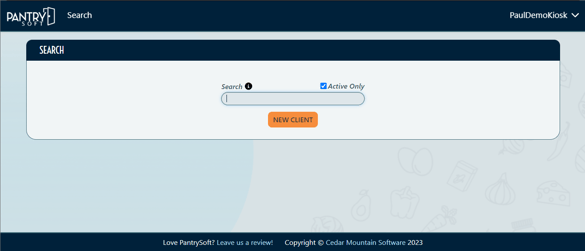
> **No Results?**
>
> If you cannot find a client you're certain is in the system, log into PantrySoft using a Dashboard user. There, you have additional options for finding misplaced clients. Use the Browse Clients function to get a list of clients with sortable name and address fields. If you still can't locate their client record, click New Client to register them for their first visit.
> **Note:** You can click or tap **Search** located on the top toolbar at any time to return to the initial search screen.
#### Recording a Visit
*The following options are available once a client record has been chosen in the Kiosk:*
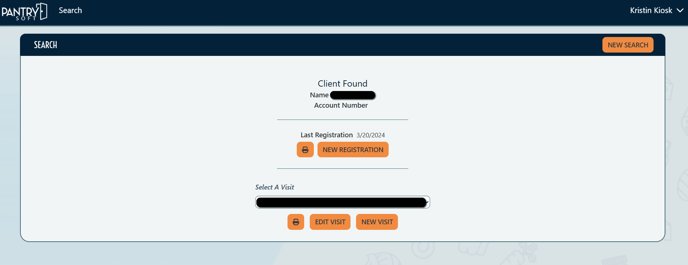
- **New Visit.** Click or tap **New Visit** to open the New Visit screen and save a brand new visit record for this client.

- **Edit Visit.** Click or tap **Edit Visit** to edit a previous visit selected in the *Select a Visit* dropdown. This button will only appear if at least one previous visit appears in the dropdown.

- **Print Ticket.** If your pantry uses the ticketing feature, click or tap **Print Ticket icon** to print a visit ticket.

- **New Registration**. Selecting this allows you to view & edit the latest registration information for the current and additional primary household members. From here, you can edit contact information, and answers to registration or demographic questions.
- NOTE: If you make changes to anything in the Edit Client ("Registration") screen, a brand new Registration record will appear on the Dashboard.

---
#### Logging a Visit
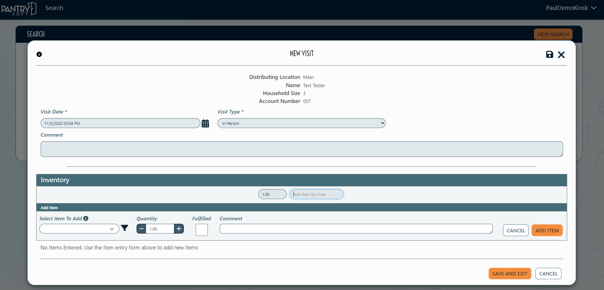
*Follow these steps to log a new visit using the Kiosk.*
1. **New Visit**
After selecting a client, click **New Visit**. This will create a visit and show you the Edit Visit screen.
2. **Select Visit Type**
If your pantry uses multiple Visit Types, verify or change the Visit Type appropriate for this visit.
3. **Answer Any Interview Questions**If your organization has interview questions on the visit screen, they will appear in a section just below the Visit Comment. Answer the questions.
*NOTE: Unanswered required questions will prevent a successful save and exit, and prompt an error message.*
4. **Add a Visit Comment (Optional)**
*NOTE: Visit comments appear on the Dashboard interface in the client record. These are useful for adding quick notes your colleagues will notice right from the Staff Dashboard itself.*
5. **Add Inventory Items**
If you're tracking outgoing inventory in PantrySoft, select or scan which items the client is taking.
**Save and Exit**
Click **Save and Exit**..
---
#### Logging a "Quick Visit" (Optional Setting)
Admins can set up the Kiosk experience to use "Quick Visits". If selected, the Kiosk search screen will behave differently when **New Visit** is selected. Instead of opening up a detailed Visit screen, the system will simply create a visit record "behind the scenes" and attach it to the Client record. This is useful for organizations that don't need to alter *anything* about a Client Visit when a client arrives at their pantry. For help enabling this setting, contact our [Support](mailto:support@pantrysoft.com)team.
---
#### **Kiosk in Anonymized Mode (Optional Setting)**
Admins can set up the Kiosk experience to use "Anonymized Mode". If selected, the Kiosk search screen will only allow client ID's to be entered to look up a client. No other information will show to keep personal information like address, phone, and email, private.
---
#### "Quick Visits" and "Client Check In" (Optional Setting)
Using both Quick Visits and Client Check In allows the Kiosk experience to be used only as a "check-in" mode, where clients can check themselves in by using only their ID. Once they have checked in, their visit has been logged and they can continue shopping. Note, only a different user would be able to check out their items, as with these two settings enabled, the kiosk mode cannot be used to check-out items.
---
**NOTE: Violating Visit Frequency Rules.**
The Kiosk interface will check to see if a visit violates frequency rules (for example, an organization may allow one visit per household per month*).* If you try to create a new visit for a client that would violate your pantry's visit frequency rules, the kiosk interface will prevent you from doing so and provide
**... Proceed Anyway?** You may notice that the Dashboard interface warns you of a potential violation, but lets you record the visit anyway. The Kiosk will refuse you outright. You'll need to log in with a Dashboard user to override the visit frequency rules.
---
#### Add, Edit, or Delete Inventory Items on Visit Record
If your pantry records inventory in PantrySoft, your visit record will have an inventory section.
1. **Verify / Identify Inventory Item Section**If your pantry is set up with Visit Inventory Items ( ), identify the section toward the bottom of the Visit called *Inventory Items*. The section has:
\- An *Item Entry* panel (see the dark gray area in the figure above)
\- An *Item Table* below the *Item Entry* panel (a brand new/ empty table just has the message *"No Items Entered..."*).
2. **Select an Item**
Select an Item under *Select an Item to Add* in the *Item Entry* section.
*Bar Code Scanning: Alternatively, if you're using the bar code scanner, you can click into that field and scan an item bar code instead of manually selecting an item.*
*Missing Items: If items you've set up for your pantry are missing from the Item field in the visit, ask an admin to revisit the item in the Inventory Item screen and ensure that both the Active and Show on Visit checkboxes have been selected.*
3. **Add an Item**Verify or edit the readied item's details (e.g. Total Weight). When you're satisfied, click **Add Item**.
4. **Edit an Added Item**
Once a readied item is added to the list of checkout items below, you can edit the item by clicking it. This will:
\- Highlight the edited item row
\- Load its details back into the Readied Item section
Now you can edit the item's details again or delete the item altogether.
Click **Save Item** when you're finished with your edits and the highlighted row in question will adjust itself accordingly
- [Getting Started](https://support.pantrysoft.com/getting-started?hsLang=en#main-content)
- [Users](https://support.pantrysoft.com/getting-started?hsLang=en#users)
- [PantrySoft Interfaces](https://support.pantrysoft.com/getting-started?hsLang=en#pantrysoft-interfaces)
- [Inventory](https://support.pantrysoft.com/getting-started?hsLang=en#inventory)
- [Guest/Client Registration](https://support.pantrysoft.com/getting-started?hsLang=en#guest-client-registration)
- [Visits](https://support.pantrysoft.com/getting-started?hsLang=en#visits)
- [Client Portal - Scheduling](https://support.pantrysoft.com/getting-started?hsLang=en#client-portal-scheduling)
- [Reporting](https://support.pantrysoft.com/getting-started?hsLang=en#reporting)
- [Additional Admin Guides](https://support.pantrysoft.com/additional-admin-guides?hsLang=en#main-content)
- [Client Registration & Visits](https://support.pantrysoft.com/additional-admin-guides?hsLang=en#client-registration-visits)
- [Additional Features](https://support.pantrysoft.com/additional-admin-guides?hsLang=en#additional-features)
- [Inventory Management](https://support.pantrysoft.com/additional-admin-guides?hsLang=en#inventory-management)
- [Additional Paid Features](https://support.pantrysoft.com/additional-admin-guides?hsLang=en#additional-paid-features)
- [Tags](https://support.pantrysoft.com/additional-admin-guides?hsLang=en#tags)
- [Scheduling Appointments](https://support.pantrysoft.com/additional-admin-guides?hsLang=en#scheduling-appointments)
- [Scheduling and Schedule Templates](https://support.pantrysoft.com/scheduling-and-schedule-templates?hsLang=en)
- [User Interfaces](https://support.pantrysoft.com/user-interfaces?hsLang=en#main-content)
- [Client Portal/ Online Store- Admin & Setup Guides](https://support.pantrysoft.com/user-interfaces?hsLang=en#client-portal-online-store-admin-setup-guides)
- [Client Portal/ Online Store- Customer Guides](https://support.pantrysoft.com/user-interfaces?hsLang=en#client-portal-online-store-customer-guides)
- [Packing/ Kitchen Screens and Reports](https://support.pantrysoft.com/user-interfaces?hsLang=en#packing-kitchen-screens-and-reports)
- [Special Workflows](https://support.pantrysoft.com/special-workflows?hsLang=en#main-content)
- [Delivery/Meals on Wheels](https://support.pantrysoft.com/special-workflows?hsLang=en#delivery-meals-on-wheels)
- [University](https://support.pantrysoft.com/special-workflows?hsLang=en#university)
- [FAQ & Miscellaneous](https://support.pantrysoft.com/faq-miscellaneous?hsLang=en#main-content)
- [Client Troubleshooting](https://support.pantrysoft.com/faq-miscellaneous?hsLang=en#client-troubleshooting)
- [Other FAQs](https://support.pantrysoft.com/faq-miscellaneous?hsLang=en#other-faqs)
- [Messaging and Notifications](https://support.pantrysoft.com/faq-miscellaneous?hsLang=en#messaging-and-notifications)
- [Other Reports](https://support.pantrysoft.com/faq-miscellaneous?hsLang=en#other-reports)
- [Technical Documentation](https://support.pantrysoft.com/faq-miscellaneous?hsLang=en#technical-documentation)
- [Reporting Tools](https://support.pantrysoft.com/reporting-tools?hsLang=en#main-content)
- [Merging Duplicate Client Accounts](https://support.pantrysoft.com/reporting-tools?hsLang=en#merging-duplicate-client-accounts)
- [Release Notes](https://support.pantrysoft.com/release-notes?hsLang=en#main-content)
- [2026 Releases](https://support.pantrysoft.com/release-notes?hsLang=en#2026-releases)
- [2025 Releases](https://support.pantrysoft.com/release-notes?hsLang=en#2025-releases)
- [2024 Releases](https://support.pantrysoft.com/release-notes?hsLang=en#2024-releases)
- [Recorded Webinars](https://support.pantrysoft.com/recorded-webinars?hsLang=en#main-content)
- [2026 Webinar Recordings](https://support.pantrysoft.com/recorded-webinars?hsLang=en#2026-webinar-recordings)
- [2025 Webinar Recordings](https://support.pantrysoft.com/recorded-webinars?hsLang=en#2025-webinar-recordings)
- [Special/ Niche Features](https://support.pantrysoft.com/special-niche-features?hsLang=en)
- [Advanced Inventory](https://support.pantrysoft.com/advanced-inventory?hsLang=en)
- [CSFP Module](https://support.pantrysoft.com/csfp-module?hsLang=en#main-content)
- [CSFP Overview](https://support.pantrysoft.com/csfp-module?hsLang=en#csfp-overview)
- [Managing CSFP Participants](https://support.pantrysoft.com/csfp-module?hsLang=en#managing-csfp-participants)
- [Recording CSFP Visits](https://support.pantrysoft.com/csfp-module?hsLang=en#recording-csfp-visits)
- [CSFP Data Management](https://support.pantrysoft.com/csfp-module?hsLang=en#csfp-data-management)
- [PantrySoft Volunteer](https://support.pantrysoft.com/pantrysoft-volunteer?hsLang=en)
# PantrySoft
pantrysoft.com Help Center
Copyright © 2026, PantrySoft