
New Features
Magic Login Email Link
Users accessing the client portal can now trigger a log in email instead of being required to use a Username and Password. This feature is meant to reduce friction and errors while logging into PantrySoft.
To use the new login option:
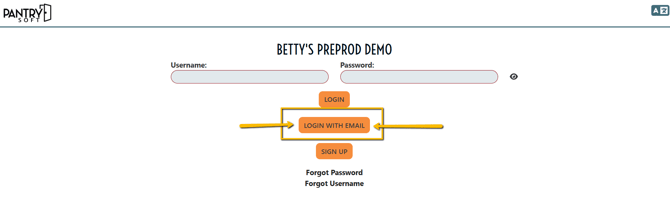
- Users can now select "Login with Email" on the Portal Landing Page to receive a login link via email.
- Users must ensure they request a login link at an email that is associated with an existing customer account in PantrySoft.
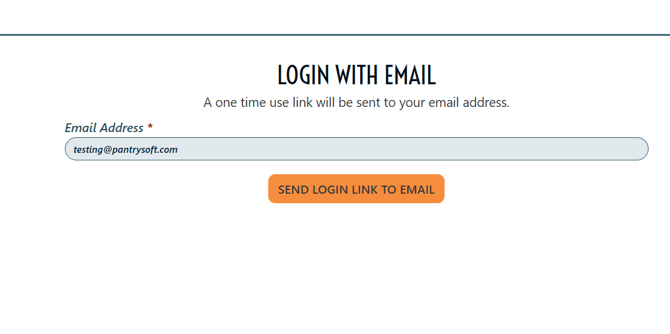
- An email with a login link will be sent from noreply@pantrysoft.com. Open that email and click on the link to log in.
How to access the Portal:
Path: Click on Username in upper righthand corner > select Account Settings > copy "Storefront Login URL"
Notes:
- Link Expiration: the email link expires after 30 days by default. Reach out to support@pantrysoft.com to adjust that time frame.
- Valid Emails Only: Only emails associated with existing Users will receive a login link.
- Not for SSO Users: Users who are authenticated via SSO will not receive nor be able to utilize the email login link option.
Include Email Login Link in Mass Emails
Path to Utilize:Please Note: To use this feature, request that PantrySoft support enable the internal setting.
-
Run a dynamic report that supports bulk emailing.
-
Select one or more clients and compose a message.
-
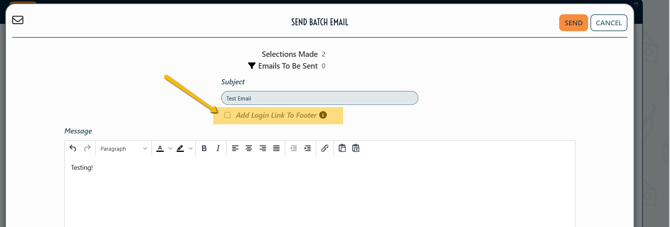
Below the subject field, check "Add Login Link to Footer"
Schedule Template Time Block Comment
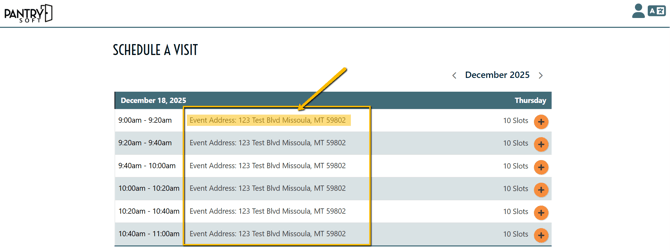
Users can now add a custom comment to Time Blocks on the Portal Appointment Screen.
How to access and configure:
- Open the Setup tab
- Select Schedule Templates
- Select the pencil icon to open an existing template,
- Or select "Add New Template" to create a new template
- Click on a Time Block to edit an existing block
- Or select Add Blocks
- Note the new Comment Field.
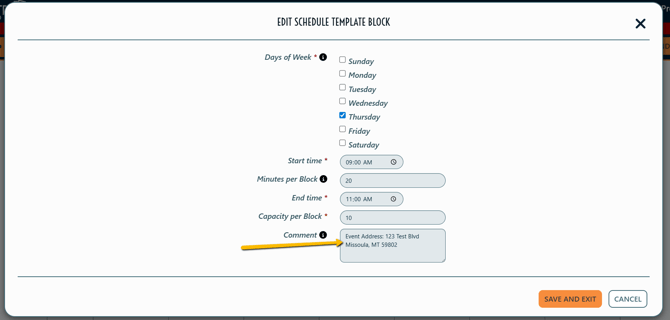
6. Custom Content added in that field will appear on the associated Time Block's row on the Appointment Page of the Client Portal.
Portal Registration: Require One Document per Household Member
Admin Users can now require that the number of documents uploaded to a client record matches the number of household members on the Portal Registration screen.
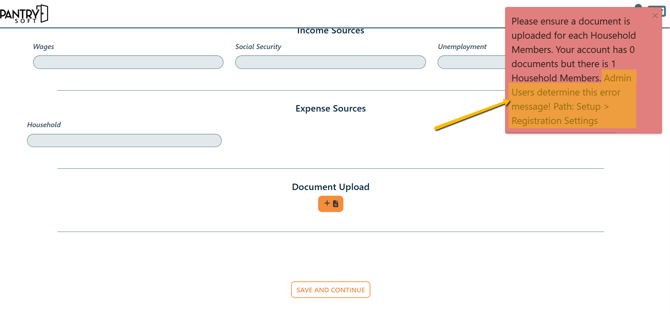
Admin Users can also customize the error message that appears on the screen if the number of uploaded documents do not match the number of household members.
Details:
- When this setting is enabled, Users must have the number of documents uploaded match the number of members in their household.
- If the number of documents does not match the number of household members, the Registrant will not be able to save the form, and will receive an error message.
- Users can customize the language added to that error message.
Path to enable this setting:
Setup > Registration Settings > Scroll to Kiosk and Registration Settings section > Set Require 1 Document Per Household Member On Registration to "Yes".
Optional setting: 1 Document Per Household Member Warning Text - add a custom message to the warning text that appears when the user is not able to save their registration.

The warning text's custom message will appear after the system explanation regarding what is missing:
Inventory Column on Queue Report
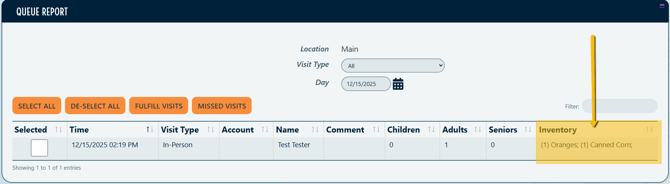
Users now have the option of seeing the Inventory that has been added to a visit record in the Queue Report.
Use Case: this is a great fit for organizations that have clients order or request inventory items ahead of a distribution, but do not pre-pack nor pre-fulfill the inventory items or requests. This gives pantry staff and volunteers an opportunity to quickly view and fulfill those inventory requests in the moment.
Details:
- When this option is enabled, the far right column on the Queue Report will be the Inventory Items that were added to the visit record.
- To avoid too much clutter on the Queue Report, this option is a strong fit for organizations that usually have10 or less unique items added to visit records ahead of a given distribution.
- Note: Users will still need to click in the Visit's Row and open the visit record in order to make changes to the inventory items or Interview (visit) Questions associated with that visit record.
Path to enable the Queue Report Inventory Column:
Setup > Visit Settings > stay in the General Settings section > Set the Show Inventory on Queue setting to "Yes".
Kiosk Visit: Shop View Mode
Admin Users can now configure the Kiosk to open automatically into "Shop View" when opening a Visit Record. This is meant to increase efficiency when checking clients in and out of the facility.
Path to enable the Shop View Mode for the entire Kiosk interface:
Setup > Kiosk Settings > Set the Visit Shop View Mode setting to "Yes".
Optional Setting: Visit Shop View Mode - Print on Checkout when this is set to "Yes" and Shop View Mode is enabled, a Visit Ticket will print automatically (defaulting to the browser's print settings).
Path to enable the Shop View Mode for a specific Kiosk User:
Setup > Users > Use the Pencil icon to open a specific User's form > Select Edit Settings > Locate and set Visit Shop View Mode to "Yes", as well as the associated ticket print setting, if applicable.
The following clip is a preview of recording a visit in the Kiosk Interface with both Shop View Mode and Print on Checkout settings enabled: