What are Recurring Shifts?
Recurring Shifts are volunteer shifts automatically generated by PantrySoft based on a preset template and schedule. They are ideal for organizations with consistent, regularly scheduled volunteers who prefer not to create individual shifts through the Volunteer Portal.
Please Note: as of 12/24/25, recurring shifts can only be set up in the Volunteer Admin Dashboard by an Org User, not on the Volunteer Portal.
Steps for Setup and Management
1. Enable Internal Settings
Initial settings need to be configured by the PantrySoft Staff. Please email support@pantrysoft.com to initiate this.
"Days Before" Setting: One setting that the PantrySoft Team will set up determines how many days ahead of a shift the system generates a Shift Record, causing it to appear on the Volunteer Record and various reports. Please let the team know how many days ahead are needed!
2. Add Schedules to Volunteer Records
Once those settings are enabled, Volunteer Admin Users will set each volunteer up on their Shift Template & Schedule.
Steps:
1. Open the Volunteer Record.
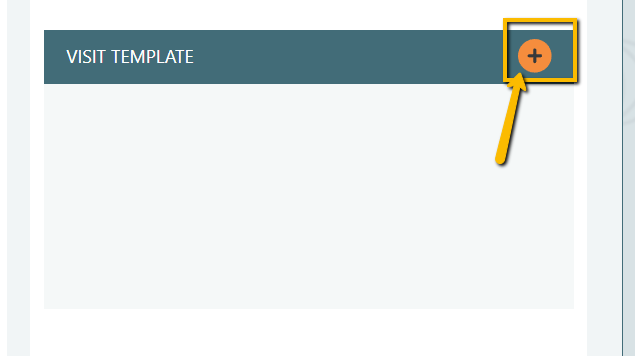
2. Scroll to the Shift Template Section on the volunteer record.
3. Click the + sign to create a shift template/schedule for this volunteer.
4. Name the template - optional
5. Set the Date Ranges:
-
- Start date = likely today
- Note: Start Date must be before their first shift date.
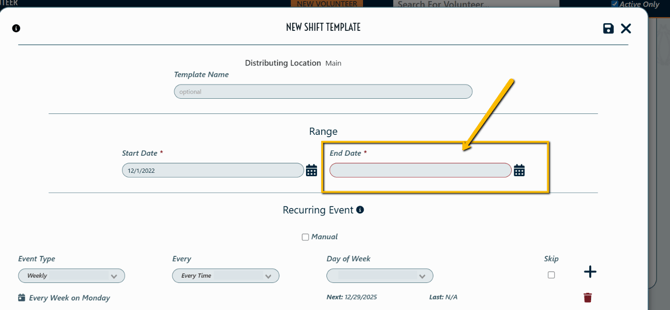
- End date = likely somewhere far off in the future, perhaps in 2030.
- Note: Admins can always end shift templates early.
- Start date = likely today
-
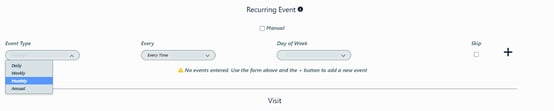
- Event Type = what time frame matches the volunteer's schedule?
- Options: Daily, Weekly, Monthly and Annual
- Options: Daily, Weekly, Monthly and Annual
- Event Type = what time frame matches the volunteer's schedule?
-
- Every = how frequently does the individual volunteer?
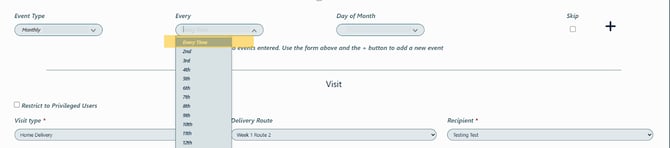
- Day of Month = what specific days or dates does the individual volunteer?
- Every = how frequently does the individual volunteer?
7. Click the + icon to save the Shift Creation schedule:
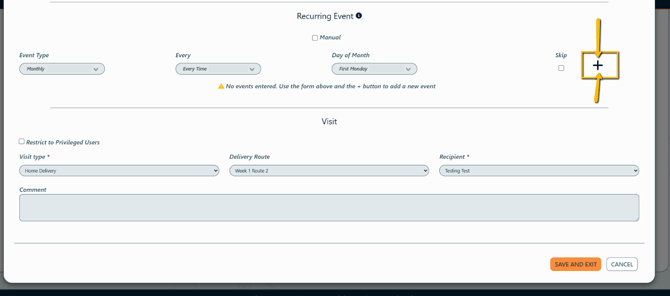
4. Verify that Shift Type and any relevant Program Tags are correct.
5. Optional: For a specific comment to always populate on the auto-generated shifts, admins can add one on this screen.
6. Save and Exit.
3. View Recurring Shifts in Reports
Depending on how far ahead the system will generate a shift, shifts will be viewable on the scheduled date on Reports such as:
- Dynamic Report "Shifts in Range"
- Dynamic Report "Volunteers Attending in Range"
- Queue Report
- Hint: The Queue Report is efficient for managing all shifts planned or recorded on a given date, as clicking into a row opens up a shift record, not a volunteer record.
- Hint: The Queue Report is efficient for managing all shifts planned or recorded on a given date, as clicking into a row opens up a shift record, not a volunteer record.
Note: establishing Recurring Shifts bypasses Volunteer Appointments altogether. This means that shifts are not visible on the portal, are not visible on Appointments-based dynamic reports, and reminder emails do not automatically get sent.
4. Send Reminders to Volunteers with Recurring Shifts
Because email reminders are not automatically sent for recurring shifts, admins can send reminder emails by leveraging one of the dynamic reports above to contact regular volunteers in bulk.
Steps:
1. Run the appropriate Dynamic Report for the correct date(s).
2. Choose "Select All" or check the box next to specific Volunteers.
3. Choose "Email".
4. Draft and Send Email.
Hint: Check outgoing emails under Setup > Message Log.
Reach out to support@pantrysoft.com to enable Texting (SMS) settings and purchase credits!
5. Pause, Skip or End a Volunteer's Recurring Shift Schedule
To Pause a volunteer's recurring shift schedule: Open the volunteer's Shift Template and check the "Manual" box.
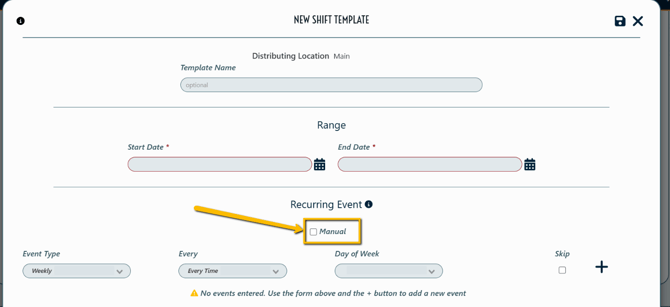
To Skip a specific Shift: Open the specific, dated shift (not shift template) using the edit pencil icon. Delete the shift.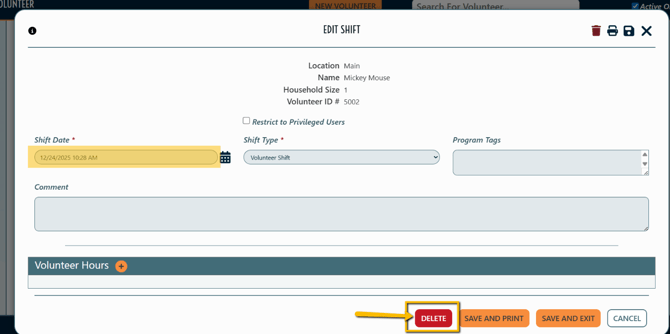
To End a volunteer's recurring shift schedule: Open the volunteer's Shift Template. Send the End Date to today.
Optional: To mark that a volunteer missed their recurring shift:
1. Email support@pantrysoft.com to enable the "Missed Shift" button.
2. Select Reporting tab > Open the Queue Report.
3. Check the box next to the Shift that was missed.
4. Select "Missed Shifts".
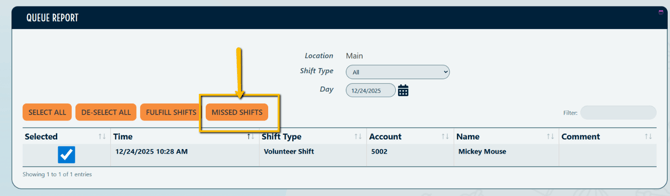
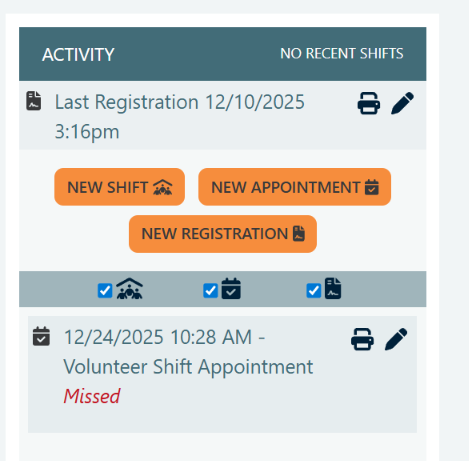
5. The Missed Shift is noted in the Activity Section of the Volunteer Record, and is also reportable.